


Plesk Panel: 7 Essential Steps to Managing Subdomains Effectively
Plesk Panel is a powerful web hosting control panel designed to simplify the administration of web hosting environments. It equips users with a comprehensive suite of tools for efficiently overseeing their websites and domains. A critical aspect of website organization is the use of subdomains, which allow you to create distinct sections or functionalities under your primary domain. Fortunately, the process of Managing Subdomains in Plesk is streamlined and intuitive. This guide will walk you through the essential steps to handle subdomains effectively within the Plesk environment.
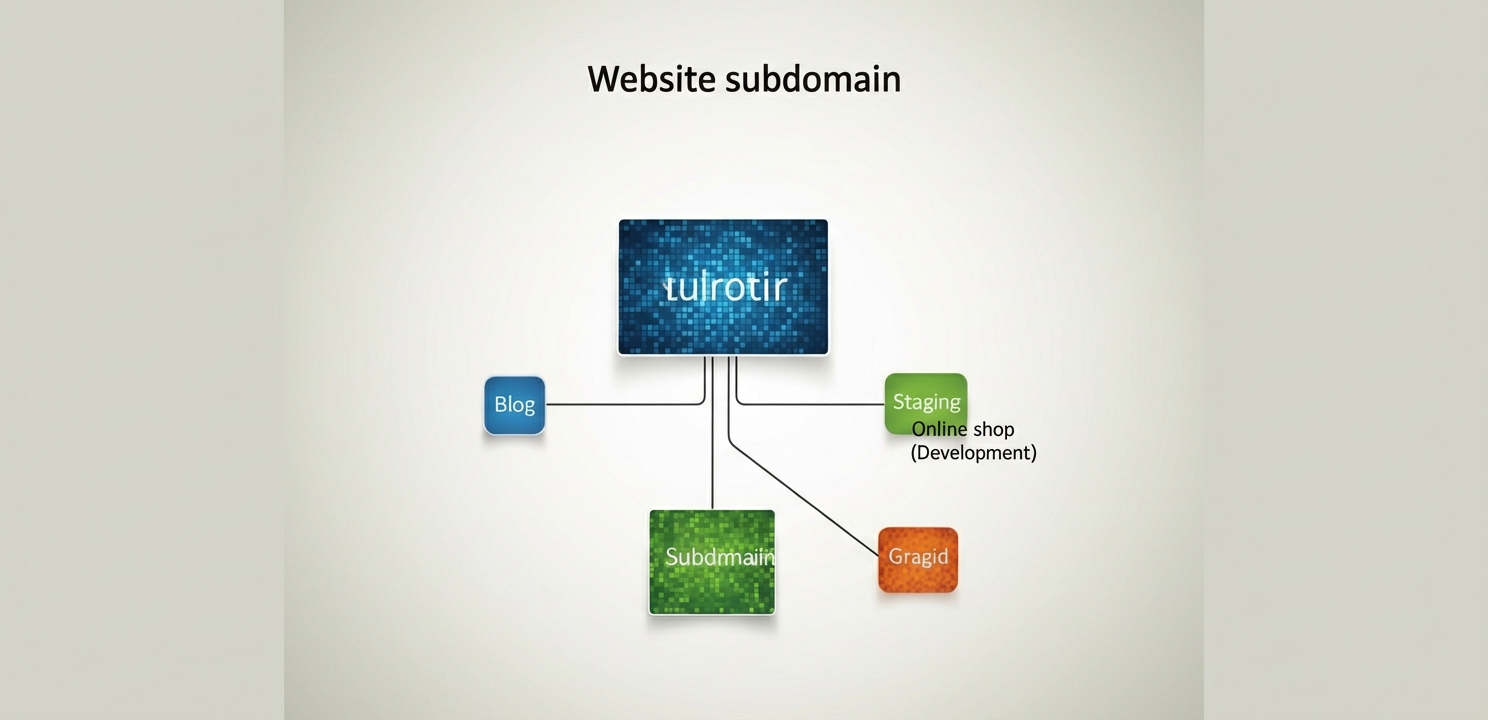
Before diving into the technical steps, it’s vital to understand the role of a subdomain. A subdomain is a subdivision of your main domain name that functions as a separate website. For instance, if your primary domain is “example.com,” you could create subdomains like “blog.example.com” or “shop.example.com.” These are commonly used to organize different parts of a website, host unique content, run separate services, or even create dedicated language or testing environments. Proper subdomain management is key to maintaining a structured and scalable web presence.
The initial steps involve logging into your Plesk account and navigating to the correct section. From there, creating a new subdomain is a straightforward task that takes only a few clicks. Subdomains are incredibly versatile and can be used for hosting a blog, a support forum, or a mobile-specific version of your site.
To begin, log in to your Plesk Panel account with your credentials. Once you are logged in, locate and click on the “Websites & Domains” tab. This dashboard provides a complete overview of all your registered domains and subdomains. If you manage multiple domains, you will first need to select the specific parent domain for which you intend to create or manage a subdomain.
After selecting the parent domain, you will see its specific management settings. Follow these steps to create the subdomain:

Once a subdomain is created, you may need to adjust its settings to ensure optimal performance and security. Plesk provides a flexible interface for tailoring each subdomain to your specific requirements. For more detailed instructions, you can refer to the official Plesk documentation on adding subdomains.
To modify an existing subdomain, navigate back to the “Websites & Domains” tab and click on the subdomain’s name. This will open its dedicated settings page, where you can configure various options. It is highly recommended to enable SSL/TLS support for every subdomain to secure data transmission with HTTPS. You can also adjust other critical settings, such as selecting a specific PHP version or enabling different web scripting capabilities to match the needs of your application.
If a subdomain is no longer required, you can easily remove it. This action permanently deletes all associated files and configurations, so ensure you have a backup if the data is important. To remove a subdomain:
While the process is simple, adhering to best practices ensures your subdomains remain organized, secure, and efficient. Proper management contributes to a healthier overall website structure.
Effectively managing subdomains in Plesk Panel is a fundamental skill for any website administrator. The platform provides all the necessary tools to create, configure, and remove subdomains with ease. By following the steps and best practices outlined in this guide, you can maintain a well-organized and secure website structure that enhances its functionality and user experience.