


“How to Refresh the Httpd.conf File in cPanel WHM
For server administrators using cPanel WHM, understanding the core components of the Apache web server is essential for effective management. The httpd.conf file stands out as the primary configuration file for Apache, acting as the central nervous system that dictates how the web server operates. This crucial file is typically located at /etc/httpd/conf/httpd.conf on most cPanel servers. Effectively managing and, when necessary, refreshing the Httpd.conf File ensures that your server runs smoothly and that websites remain accessible. Since Apache is the software responsible for serving websites to visitors, any misconfiguration or error within this file can lead to significant downtime and access issues.
The httpd.conf file contains a comprehensive set of directives that control nearly every aspect of the Apache web server’s behavior. These settings include the management of Apache modules, the configuration of virtual hosts for each website, the establishment of routing rules, and the assignment of IP addresses. Furthermore, this main configuration file often contains references and `Include` directives that load other specialized configuration files. These supplementary files might handle specific module settings or individual host configurations, allowing for a more organized and modular approach to server management. Given its critical role, knowing how to properly refresh or rebuild this file through cPanel WHM is a fundamental skill for any system administrator.
Rebuilding the httpd.conf file is not a routine task but becomes necessary under specific circumstances. The most common reasons for a rebuild are significant configuration changes or file corruption. For instance, after making substantial adjustments to the Apache setup via the WHM interface, such as enabling or disabling key modules or altering global security policies, a rebuild is required to compile these changes into a clean, active configuration file. This process ensures that all directives are correctly formatted and logically ordered, preventing conflicts and syntax errors that could cripple the web server.
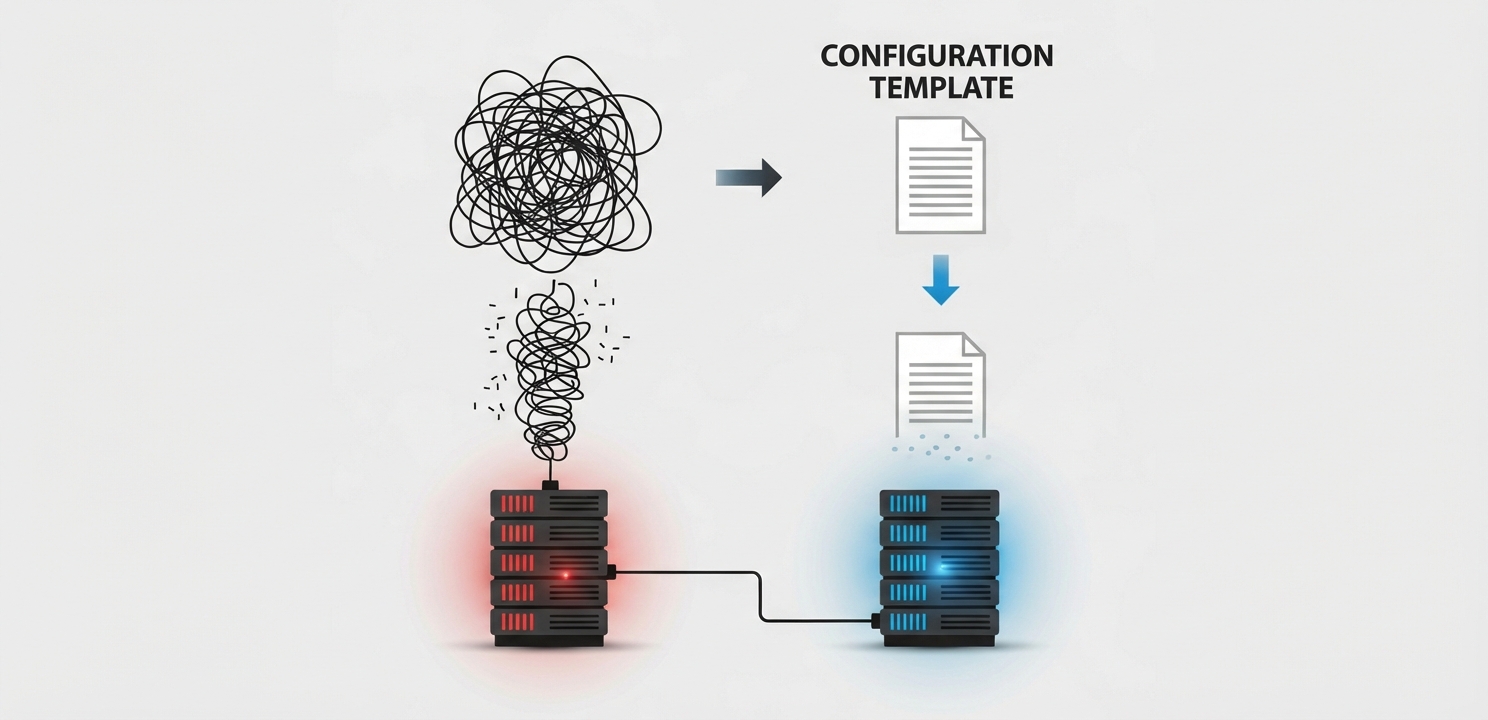
Another critical scenario that demands a rebuild is file corruption. The httpd.conf file, being a plain text file, can become corrupted due to manual editing errors, disk errors, or poorly executed automated scripts. Symptoms of a corrupted file often include Apache failing to start or websites becoming completely inaccessible. In such cases, using the built-in cPanel WHM tools to regenerate the file from its templates is the safest and most efficient way to restore functionality. This automated process reconstructs the file based on the server’s current valid settings, effectively discarding any corrupt data and restoring the web server to a known-good state.

cPanel WHM provides a user-friendly graphical interface that simplifies the process of managing and rebuilding the Apache configuration. This eliminates the need for direct command-line interaction, reducing the risk of manual errors. Follow these steps carefully to refresh your httpd.conf file:
While cPanel WHM offers robust tools that automatically generate and manage the httpd.conf file, there are advanced scenarios where manual edits are unavoidable. These situations may involve implementing custom rewrite rules, configuring special security modules, or integrating third-party applications that require specific Apache directives not available through the WHM interface. When you need to edit the file directly, exercising extreme caution is paramount to avoid disrupting server operations.
Any syntax error, no matter how small, can prevent the Apache web server from starting, leading to widespread service outages. Because the web server is the software that makes websites accessible, an incorrect directive in the httpd.conf file can bring down every site on the server. The official Apache HTTP Server documentation provides detailed guidance on the syntax and structure of configuration directives, serving as an essential resource for administrators. Before making any manual changes, always create a complete backup of the existing, functional httpd.conf file. This simple step ensures that if your changes cause problems, you can quickly revert to the previous working configuration and minimize downtime while you diagnose the issue.