

How to Prevent VMware Mac Collisions
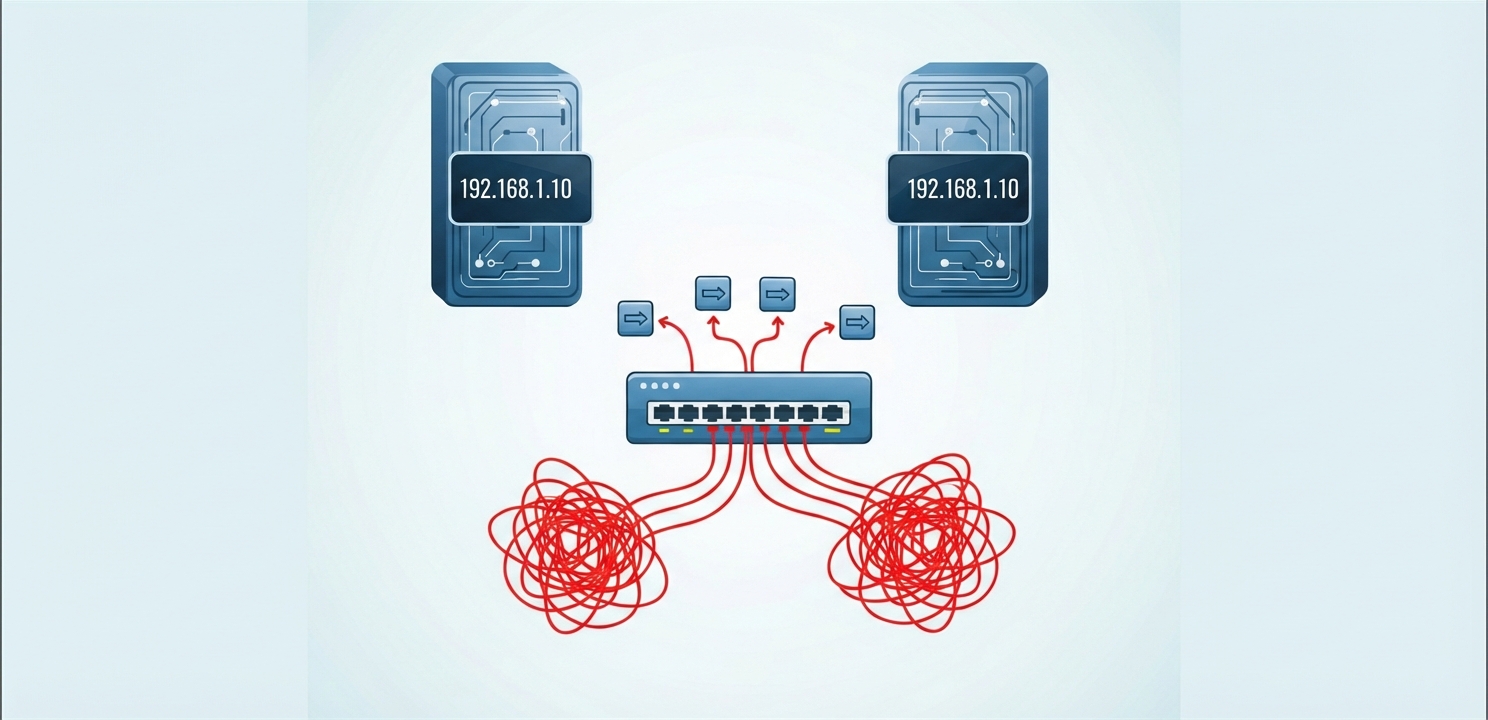
Cloning virtual machines in a VMware environment is a cornerstone of modern IT efficiency, allowing for the rapid deployment of standardized servers for development, testing, and scaling. While this feature is incredibly powerful, it harbors a common pitfall that can lead to perplexing network issues: MAC address collisions. When a cloned VM is brought online with an identical MAC address to its parent, it can trigger significant network conflicts. These disruptions often manifest as unstable connectivity, DHCP lease failures, and other hard-to-diagnose problems. Fortunately, resolving these VMware Mac Collisions is a straightforward process that ensures each VM has a unique network identity.
This guide provides a detailed walkthrough of the essential steps required to generate a new, unique MAC address for your cloned virtual machine. By following these instructions, you can ensure your VMs operate harmoniously on the network without causing interference. This process involves a minor edit to the VM’s core configuration file, which prompts VMware to assign a fresh identifier upon the next startup, effectively resolving the conflict and restoring stable network operations.
The root of the problem lies within the virtual machine’s primary configuration file, which has a .vmx extension. This text-based file acts as the blueprint for the virtual machine, dictating its hardware specifications, including the assigned MAC address. When you clone a VM, this configuration file is duplicated verbatim. If not properly handled during the cloning process, the new VM inherits the exact same MAC address as the original, creating two identical network endpoints. To rectify this, a manual intervention is necessary to compel VMware to generate a new, unique address for the cloned machine.
A MAC (Media Access Control) address is a fundamental component of networking. It is a unique identifier assigned to a network interface controller (NIC) for communications at the data link layer of a network segment. No two devices on the same local network should ever have the same MAC address. When they do, switches and routers become confused, leading to packets being delivered to the wrong machine or dropped entirely. This results in the erratic network behavior seen with MAC collisions.
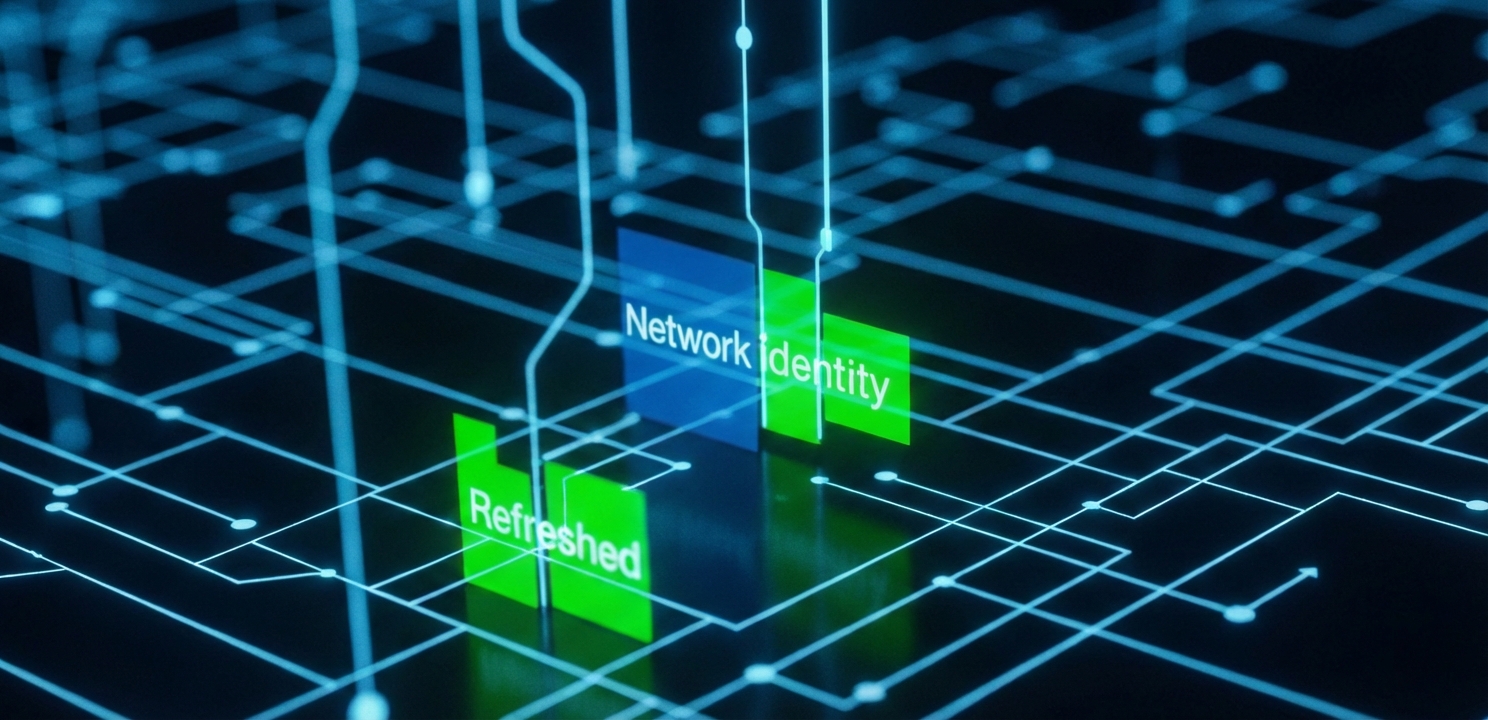
Follow these precise steps to provide your cloned virtual machine with a fresh network identity. It is always a critical best practice to create a backup or a snapshot of your virtual machine before proceeding with any configuration file modifications. This ensures you have a safe restore point in case of an error.
The first and most crucial step is to ensure the cloned virtual machine is fully shut down. It is not sufficient to merely suspend the VM; it must be completely powered off. A suspended VM saves its current state to disk, including the active network configuration. Editing its files in this state can lead to corruption. A full shutdown guarantees that the VM will read the updated configuration from the .vmx file when it is next started, allowing the changes to take effect properly.
Navigate to the directory on your datastore where the virtual machine’s files are stored. In this folder, you will find several files; the one you need to modify is the file ending with the .vmx extension. This is the primary configuration file that defines the VM’s hardware. For more information on editing these files, VMware provides official documentation that can be a useful resource. You can consult VMware’s Knowledge Base article on locating and managing these files. Open this file using a plain text editor.
Once the file is open, you must carefully search for and completely delete the following lines. These lines define the machine’s network and system identity:
ethernet0.generatedAddress = "00:0c:29:xx:xx:xx"ethernet0.addressType = "generated"uuid.bios = "..."The ethernet0.generatedAddress line explicitly sets the NIC’s MAC address. The uuid.bios line is a unique identifier for the virtual machine’s BIOS, which is used as a basis for generating the MAC address. Removing these specific entries signals to VMware that these identifiers are missing and must be recreated.
After deleting the specified lines, save the changes to the .vmx file and close your text editor. Now, you can power on the virtual machine within your VMware environment. As the VM begins its boot sequence, VMware will parse the .vmx file and detect that the critical network and BIOS identity lines are missing. This absence triggers an automatic regeneration process.
The system will create new, unique values for both the BIOS UUID and the MAC address, writing these new lines back into the .vmx file. This action permanently resolves the MAC collision, allowing your cloned virtual machine to properly request an IP address from a DHCP server and communicate on the network without causing any conflicts with its parent or other VMs.