


cPanel Error Logs: How to Review Them
Understanding how to review cPanel error logs is a critical skill for managing and maintaining a healthy website. These logs are essential for diagnosing issues that could negatively impact your site’s functionality and user experience. By regularly analyzing cPanel errors, you can proactively identify and resolve problems, ensuring your website operates smoothly. This guide will walk you through the process, from locating the error logs to understanding and fixing the issues they highlight.
Effectively managing your website involves more than just content creation; it requires consistent technical oversight. The error logs within cPanel provide a direct window into your site’s operational health, capturing information that is invaluable for troubleshooting. Learning to navigate and interpret these logs is a fundamental step toward enhancing your site’s performance and stability.
Before you can begin to analyze any issues, you must first know where to find the error logs within the cPanel interface. This initial step is straightforward but crucial for gaining access to the diagnostic information your site generates. Fortunately, cPanel organizes its tools into intuitive sections, making the logs relatively easy to locate.
Typically, the error logs are situated in the “Metrics” section of the cPanel dashboard. Once you navigate to this area, you will find an option labeled “Errors.” Clicking on this will take you directly to the error log page, which displays the most recent issues recorded by your server. The official cPanel documentation provides detailed information about this interface. It is a valuable best practice to check this section regularly to stay informed about any problems as they arise, preventing minor issues from escalating into more significant complications.
Once you access the error log page, you will be presented with a list of recorded errors. This view typically shows up to 300 of the most recent entries in reverse chronological order. To effectively diagnose problems, you must carefully examine the details provided for each entry. Pay close attention to the error codes and their accompanying descriptions, as these will give you the initial clues needed to understand the root cause of the problem. Reading through these messages helps you prioritize which issues require immediate attention.
As you review the logs, it’s advisable to take note of any recurring errors. A problem that appears repeatedly often points to a deeper, underlying issue that needs a more comprehensive solution than a one-time fix. Identifying these patterns is key to ensuring your website functions optimally and maintains its stability over time. Consistent monitoring and methodical review are essential for effective website management.

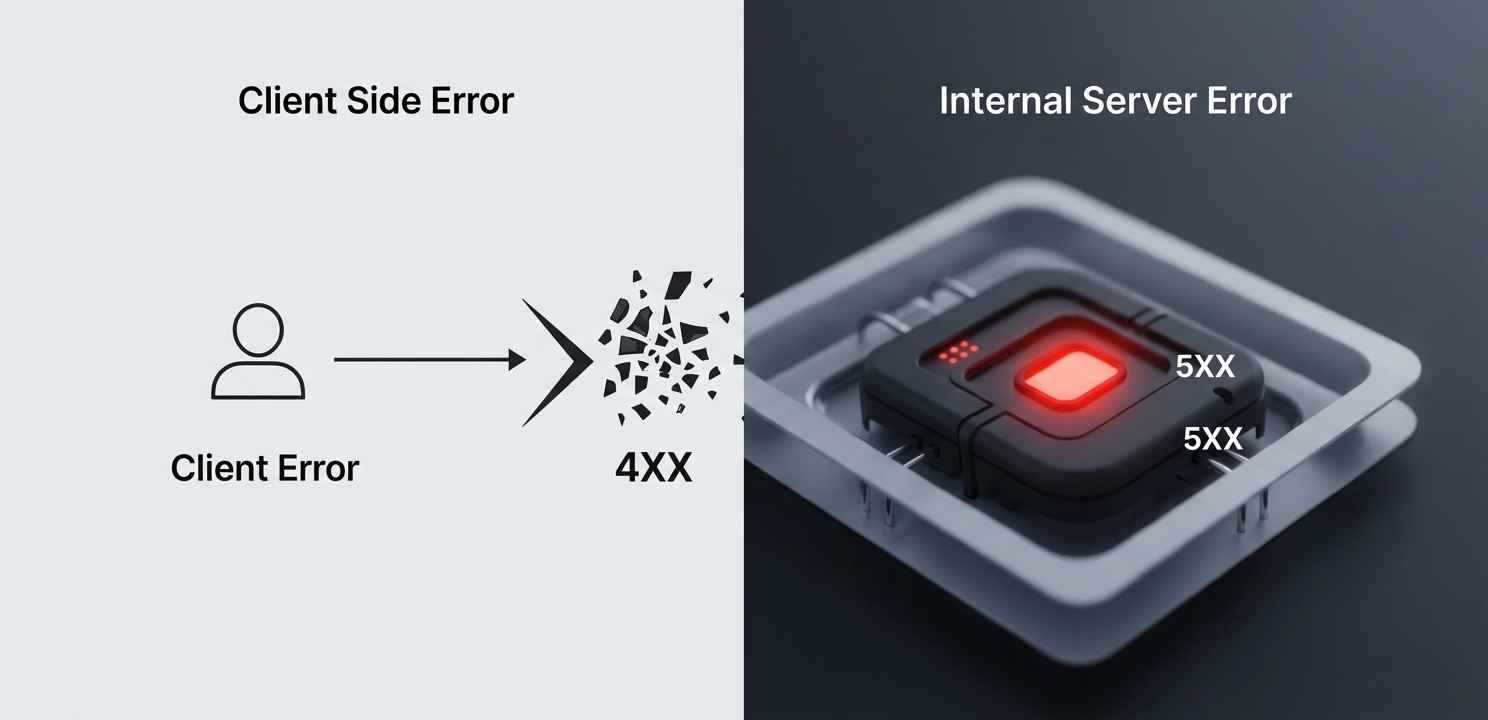
When you examine your website’s error logs, it is crucial to understand the different categories of errors you might encounter. Most web-related errors are identified by standard HTTP status codes, which are broadly grouped into classes. For website administrators, the most common and critical errors fall into the 4XX and 5XX series. Understanding the distinction between these types allows for more effective troubleshooting and ensures you address the most critical problems first.
Errors beginning with a “4” (4XX) are known as client-side errors. This classification indicates that the problem originated from the user’s request. A very common example is the 404 Not Found error, which signifies that the server could not find the requested page. This is often caused by a broken link, a mistyped URL, or a page that has been moved or deleted. Resolving these issues typically involves correcting the link or restoring the missing content.
On the other hand, errors beginning with a “5” (5XX) signify server-side errors. These are generally more critical as they indicate a problem with the server itself or the website’s configuration. The 500 Internal Server Error is a frequent example, which can stem from issues in a script, problems with server configuration files, or resource limitations. Fixing a 500 error often requires a deeper investigation into your site’s code or the server’s settings.
After reviewing the error logs and understanding the nature of the problems, the next step is to implement fixes. The approach to resolving an error depends heavily on its type. For instance, a recurring 404 error might require you to systematically check your internal links, correct URLs in your content, or implement redirects for moved pages. In contrast, a 500 error might demand a review of recent changes to your website’s code, checking your server’s configuration files like `.htaccess`, or debugging a faulty script. The process can range from a quick, few-minute fix to a more extended investigation. Patience and a methodical approach are vital, as rushing can inadvertently introduce new, more significant issues.
Fixing existing errors is only part of the solution; proactive monitoring and preventative measures are essential for long-term website health. Regularly monitoring your cPanel error logs allows you to detect new issues early, ensuring your site’s performance is consistently maintained and minimizing potential downtime. This vigilance enhances both the security and the user experience of your website.
To prevent errors from occurring in the first place, you should adopt several best practices. These preventative measures include:
These proactive steps, combined with diligent error log reviews, help maintain your website’s health and performance over the long term.
When reviewing error logs, you will likely encounter several common types of problems. Understanding these can speed up your troubleshooting process significantly.
.htaccess files or file permission problems. Resolving them involves verifying that file permissions are set correctly and that the directives in the .htaccess file are valid.If you need to share these logs with a developer or technical support for further analysis, cPanel includes a feature to download or export the logs. This is particularly useful for collaborative troubleshooting or for keeping a historical record of past issues for future reference.