


Centos 7 Plesk Panel Installation
Installing a Plesk panel on the CentOS 7 operating system is a highly recommended and straightforward process, primarily because Plesk provides a version specifically optimized for the CentOS environment. As a powerful tool for web server management, Plesk simplifies tasks such as managing hosted websites, adding new domains, and performing various administrative duties. The combination of Plesk’s robust management features with the server-optimized nature of CentOS creates a potent and popular solution for server administrators. This comprehensive tutorial will guide you through the complete Plesk Panel Installation process on a fresh CentOS 7 server, ensuring a smooth and successful setup.
The compatibility between Plesk and CentOS makes it a preferred choice for those looking to efficiently manage their web hosting environment. Before initiating the installation, it’s crucial to prepare your server to meet the necessary requirements. This preparation is key to avoiding conflicts and ensuring stable performance once the panel is active. By following these detailed instructions, you will be able to get your server control panel up and running effectively, ready to manage your web services without complications.
Before you begin the Plesk installation, there are two critical prerequisites to address. First, you must ensure that your server is a clean slate. This means you should remove any other web server software (like Apache or Nginx if installed separately) or any previously installed control panels. Running multiple control panels or web servers simultaneously will lead to software conflicts and system instability. A fresh, minimal installation of CentOS 7 is the ideal starting point. Secondly, server resources must be adequate for Plesk to operate efficiently. The Plesk panel can be resource-intensive, particularly under load. Therefore, you must verify that your server has sufficient CPU processing power and RAM capacity to handle both the panel’s operations and the websites it will host. Insufficient resources can lead to slow performance and potential service disruptions.

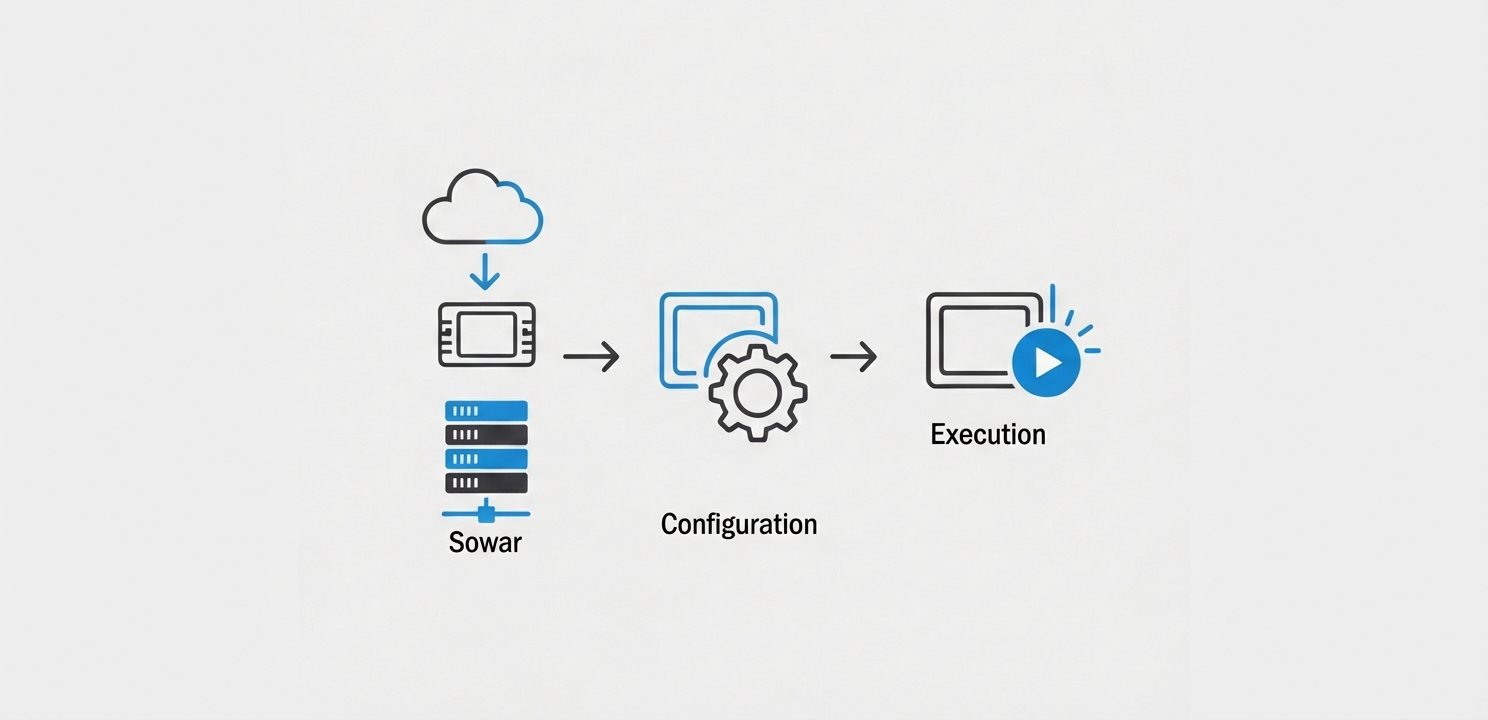
The installation process is handled through a dedicated installer script provided by Plesk. This script automates the majority of the setup, but requires a few manual steps to download, configure, and execute. The following sections break down the process into clear, manageable steps. It is essential to execute these commands in the specified order to ensure a successful outcome.
Your first action must be to connect to your server via SSH and ensure your CentOS 7 system is completely up-to-date. Running the latest versions of system packages is vital for security and compatibility.
sudo yum update
sudo yum install wget
sudo yum install perl
With your system prepared, the next phase involves retrieving the official Plesk installer and making it executable. These commands should be run from your desired directory, typically your home directory.
wget https://autoinstall.plesk.com/plesk-installer
chmod +x plesk-installer
./plesk-installer
Upon launching the wizard, you will be presented with a series of prompts. You must carefully review and confirm the settings to ensure Plesk is installed with your desired components. Follow all on-screen instructions closely to complete this part of the setup.
Once the installation wizard completes its tasks, the Plesk panel will be installed on your server. However, there are a few final items to consider before you can begin using it. During the final stages of the automated setup, you may be prompted to provide a Plesk license key. This key is essential for activating the software and unlocking its full feature set. After the key is validated, the installation will finalize.
You can then access your newly installed Plesk panel through your web browser. Navigate to your server’s IP address on port 8443 using a secure connection. The URL will follow this format:
https://<server-ip>:8443/
Simply replace <server-ip> with the actual IP address of your server. Upon loading this page, you will be greeted with the Plesk login screen, where you can begin managing your server and websites. After this initial setup, it is crucial to focus on post-installation configurations. This includes setting up a firewall for security, fine-tuning server settings for optimal performance, and establishing a regular maintenance schedule. Consistent updates are critical for keeping your server environment secure, stable, and running smoothly.