


How To Do Centos Disk Expansion
Running low on disk space on your CentOS server is a common and often critical issue, especially when operating within a virtualized environment where resources can be dynamically managed. Fortunately, performing a Centos disk expansion on a virtual machine is a well-established procedure that does not have to be a daunting task. This comprehensive guide provides a detailed, step-by-step approach to help you safely and effectively increase your system’s storage capacity. By following these instructions carefully, you can expand your available disk space without risking data loss.
Regardless of whether your infrastructure utilizes VMware, VirtualBox, KVM, or another hypervisor, the fundamental principles of this process remain consistent. The procedure always begins at the hypervisor level, where you first allocate more storage to the virtual disk. However, after you have provisioned this extra capacity, the crucial second phase involves instructing the CentOS operating system to recognize and incorporate this newly available, unallocated space into its existing filesystem. This guide focuses on that second phase, ensuring your server can actually use the space you’ve added.

Before making any modifications to your server’s partition table or filesystems, it is absolutely essential to perform a few preparatory checks. This diligent approach is foundational to preventing data loss and upholds the golden rule of system administration: “Safety First.” Rushing this process can lead to irreversible errors, so take the time to complete the following steps thoroughly.
lsblk or fdisk -l to list block devices and their associated partitions. The output will help you identify the correct device names, which are typically listed as /dev/sda1 or /dev/vda2. Incorrectly identifying the target could lead to modifying the wrong partition.lsblk -f command, which displays filesystem information alongside the device names.With your preparatory checklist complete and a reliable backup or snapshot in place, you are now ready to proceed with the technical steps of expanding the partition and filesystem. Following these instructions precisely is key to ensuring a smooth and successful increase in your server’s storage capacity.
After you have increased the virtual disk’s size within your hypervisor’s settings, the guest CentOS operating system will not automatically detect this change. While a simple server reboot would force the kernel to recognize the new disk geometry, this approach involves downtime. A more efficient and professional method is to trigger a rescan of the SCSI device. This forces the OS to re-read the disk’s properties without requiring a restart, making the expanded capacity visible to the system. The exact rescan command can vary, but its objective is to update the OS’s awareness of the underlying storage device’s size.
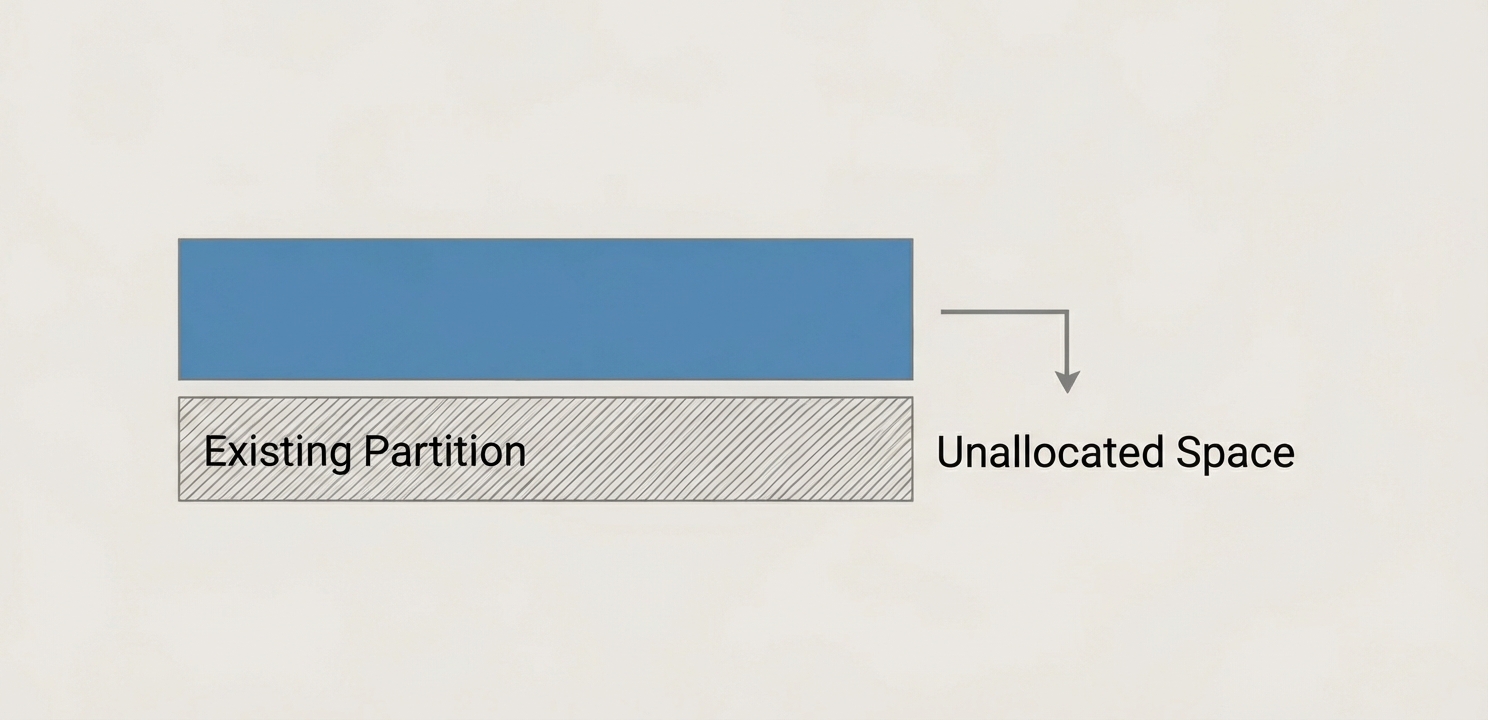
The next vital step is to modify the partition table to make the existing partition grow into the newly available unallocated space. For modern CentOS systems, the recommended and safest tool for this operation is growpart. This utility is significantly simpler and less error-prone than using a tool like fdisk, which would require manually deleting and then recreating the partition with a new, larger size—a process that carries a higher risk of user error. To extend the first partition on the disk /dev/sda, you would execute a command like: growpart /dev/sda 1. Always remember to replace the device name and partition number with the specific values that correspond to your virtual machine’s configuration.
Finally, after extending the partition, you must instruct the filesystem itself to grow and occupy the newly expanded partition space. This is the stage where the filesystem type you identified earlier becomes critical, as the command is different for XFS and EXT4. It’s a crucial step because until the filesystem is resized, the extra space remains unusable by the operating system. For an XFS filesystem, which is the standard for recent CentOS releases, you must use a specific command designed to grow the filesystem online. You can find detailed technical guides on how to properly manage and expand an XFS filesystem in official vendor resources, such as the Red Hat Enterprise Linux documentation. The command to use is xfs_growfs /path/to/mountpoint (for example, xfs_growfs / to expand the root filesystem). For older EXT4 filesystems, the corresponding command is resize2fs /dev/your_partition (e.g., resize2fs /dev/sda1). Once this command completes its execution, the process is finished. You can immediately confirm the result by running the df -h command. The output should now reflect the increased disk space, indicating that your CentOS disk expansion task was completed successfully and the new storage is available for use.