Installation of Web Applications and CMS on Plesk Panel
Installation of Web Applications and CMS on Plesk Panel
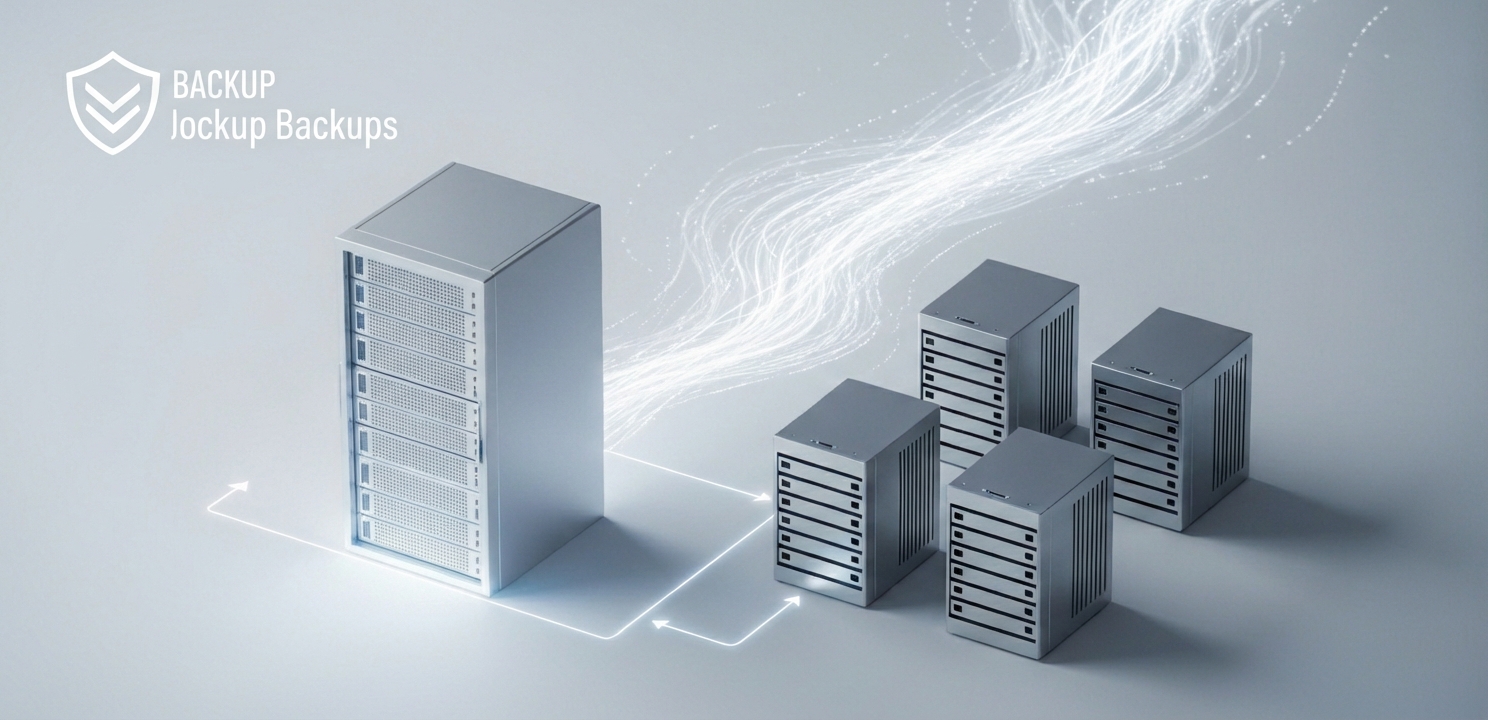
Plesk Panel simplifies creating a reliable backup strategy to ensure website data integrity.
Installation of Web Applications and CMS on Plesk Panel
Web applications and content management systems (CMS) serve as the foundational tools for creating and managing modern websites. The Plesk Panel simplifies the deployment and ongoing administration of these essential tools, making them highly accessible for users of all technical skill levels. This comprehensive guide provides a detailed, step-by-step walkthrough for installing web applications and CMS platforms on the Plesk Panel. Furthermore, it covers essential best practices for maintaining security, performing regular updates, and establishing a reliable backup strategy to ensure your website’s integrity and performance.
Understanding how to properly manage the installation of web applications and CMS on Plesk Panel is a critical first step toward building a robust online presence. By leveraging the panel’s intuitive interface, you can streamline processes that would otherwise require significant technical expertise, allowing you to focus more on content creation and less on server management.
Getting Started with the Plesk Panel
Before you can install any application, you must first gain access to your server’s control panel. This initial step is your gateway to all the powerful server management features that Plesk offers, including its comprehensive application installer and management tools.
Logging into Your Plesk Account
Accessing your Plesk Panel dashboard is a straightforward process. Follow these simple steps to log in and begin managing your server environment:
Open your preferred web browser and navigate to your unique Plesk Panel login URL. This address is typically formatted as https://your-server-ip-address:8443 or a custom domain provided by your hosting company.
Enter your designated username and password into the login fields. These credentials grant you access to the Plesk dashboard, where a wide array of server management tools awaits.
Once you are successfully logged in, you can proceed with the installation of your chosen web applications and CMS platforms.
Installing Web Applications and CMS
The Plesk Panel offers multiple pathways for application installation, catering to both popular, one-click solutions and more specialized, custom software. Whether you are installing a well-known CMS like WordPress or a unique application, Plesk provides the necessary tools to complete the task efficiently.
Using the Application Catalog
Plesk provides a rich and extensive application catalog that dramatically simplifies the installation of popular web applications and content management systems. This feature automates many of the technical steps, making it the ideal choice for most users. To access and use the catalog, follow these instructions:
From the main Plesk Panel interface, navigate to and click on the “Applications” tab. This action will display a comprehensive list of available applications and CMS options.
Take your time to browse through the “Application Catalog” to identify the software that best meets your project’s requirements. You will find widely-used platforms such as WordPress, Joomla, and Drupal readily available for immediate installation. For more detailed official instructions, you can refer to the Plesk documentation on installing apps.
Click on your desired application to initiate the installation wizard. You will be guided through a series of prompts to configure necessary details, such as the installation directory, database credentials, and administrator account information.
Follow the on-screen instructions to finalize the process. Plesk Panel handles the backend configuration, ensuring your application is set up correctly and ready for customization.
Performing a Manual Installation
In the “Applications” section, find and select the “Manual Install” option. This will allow you to upload the application’s source files directly to your server.
Once the files are uploaded, you must follow the installation instructions provided by the application’s developer. This typically involves creating a database, configuring connection settings, and running an installation script.
Manual installation empowers you with full control over every aspect of the setup, making it suitable for complex or bespoke software solutions.
Configuring Critical Installation Settings
Proper configuration during the installation process is vital for the security and functionality of your application. Pay close attention to the following settings:
Database Setup: Carefully enter the database name, username, and a strong password. Ensuring the database is properly configured and secured is crucial for protecting your site’s data.
Administrator Account: Create a unique and strong username and password for the administrative account. Avoid using common defaults like “admin” to prevent unauthorized access.
Security Measures: Always use HTTPS to encrypt communication between your website and its visitors. Additionally, consider restricting access to the administrator panel to specific, trusted IP addresses for an added layer of security.
Plesk Panel simplifies the deployment of essential web applications and content management systems.
Post-Installation Management and Security
Once your application is installed, ongoing management is key to maintaining a secure and reliable website. This includes keeping software updated, adhering to security best practices, and having a robust backup plan in place.
Ongoing Security and Updates
Maintaining the security of your web application or CMS is a continuous responsibility. Proactive measures are essential to protect your site from vulnerabilities and potential threats.
Apply Updates Regularly: The Plesk Panel will notify you when updates are available for your installed applications. Always apply security patches and software updates promptly to protect against known vulnerabilities.
Implement Security Best Practices: Consistently use strong, unique passwords for all accounts. Enable two-factor authentication (2FA) whenever possible and regularly review server access logs to identify and investigate any suspicious activity.
Backup and Restore Procedures
Regularly backing up your web application and its database is one of the most effective ways to prevent catastrophic data loss. Plesk provides integrated tools to simplify this critical task.
Set Up Automated Backups: Use the Plesk Panel to schedule automated backups of your application files and databases. You can choose a backup frequency—daily, weekly, or monthly—that aligns with how often your site’s content changes.
Restore from Backups: In the event of a technical issue, data corruption, or a security breach, you can quickly restore your application or CMS from a previously saved backup. This capability ensures minimal downtime and helps maintain business continuity. A well-defined backup strategy provides essential peace of mind.