


Plesk Panel Webmail: 7 Essential Tips for Secure and Efficient Email Management
Managing your email effectively is crucial, and the Plesk Panel provides a powerful and convenient way to handle your web hosting services, including your email accounts. A key feature for this is Plesk Panel Webmail, which grants you access to your email directly through any web browser, removing the dependency on a standalone email client. This flexibility means you can manage communications from anywhere, on any device with an internet connection. This guide offers essential tips for using webmail securely and efficiently.
Understanding how to leverage webmail enhances your productivity and safeguards your digital correspondence. From choosing the right interface to implementing robust security measures, mastering your webmail settings is a key part of professional email management. We will explore the different webmail clients available, advanced security protocols, and customization options to streamline your workflow and protect your valuable data.
Plesk typically provides several webmail clients, each offering a different user experience and feature set. Choosing the right one depends entirely on your specific needs and personal preferences. Familiarizing yourself with the options allows you to select the most efficient tool for your email management tasks.
Horde is much more than a simple email client; it’s a comprehensive, enterprise-level groupware suite. It is packed with features designed for business users who need integrated tools to manage their workflow.
Roundcube is celebrated for its modern, intuitive, and user-friendly interface. It provides a clean and streamlined experience that feels similar to a desktop email application, making it a popular choice for many users.
SquirrelMail is a lightweight and straightforward webmail client. It prioritizes speed and compatibility over a feature-rich, modern interface, making it a reliable choice for users who need fast and basic email access.

Accessing your email through Plesk is a straightforward process. First, you need to log into your main Plesk Panel. Open your preferred web browser and navigate to your Plesk login URL, then enter your hosting account username and password. Once logged in, you will be at the main dashboard. From here, locate and click on the “Mail” section. This will take you to a page listing all the email accounts associated with your domains. Find the specific email address you wish to access and click on the webmail icon next to it. This action will automatically and securely log you into the webmail interface, allowing you to start managing your emails immediately.
The foundation of any secure email account is a strong password. A compromised password can grant unauthorized users access to your sensitive communications. Always create complex passwords that are difficult to guess. A strong password should include a combination of uppercase and lowercase letters, numbers, and special characters like `!`, `@`, or `#`. Avoid using easily guessable information such as birthdays, names, or common words. The longer and more complex the password, the more secure your account will be against brute-force attacks.
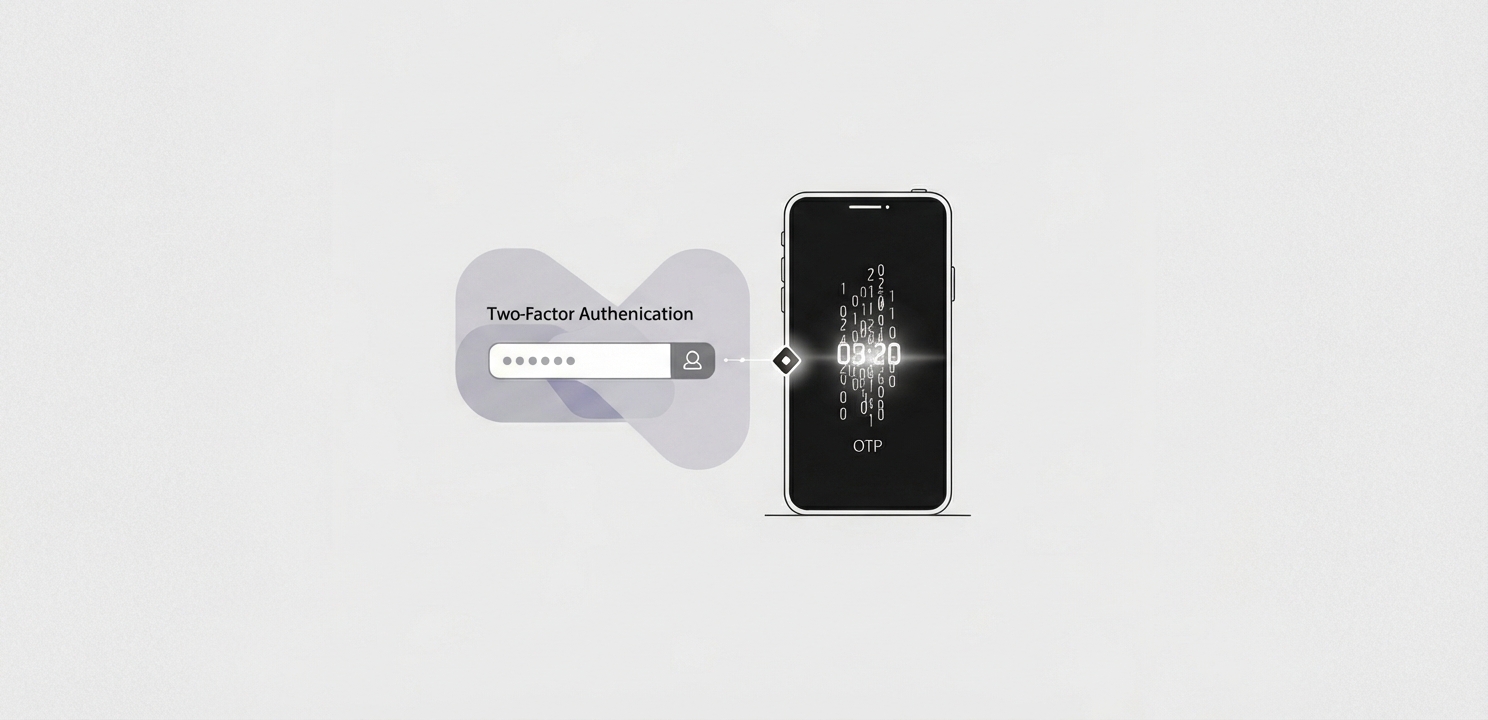
For an even higher level of security, enable two-factor authentication (2FA) whenever it is available. 2FA adds a critical second layer of verification to your login process. In addition to your password, you will need to provide a second piece of information, typically a time-sensitive code generated by an app on your smartphone. This means that even if someone manages to steal your password, they will not be able to access your account without physical access to your trusted device, significantly reducing the risk of unauthorized access.
Always verify that your webmail session is protected by SSL encryption. You can confirm this by checking for “https://” at the beginning of the URL in your browser’s address bar, along with a padlock icon. SSL (Secure Sockets Layer) encrypts the data transmitted between your browser and the server, making it unreadable to anyone who might try to intercept it. This is especially important when accessing your email on public Wi-Fi networks, where the risk of data interception is higher. Using an encrypted connection ensures that your login credentials and email content remain private and secure.
Take advantage of the advanced settings within your webmail client to better manage your inbox and improve your workflow. These tools can help you automate tasks and keep your inbox organized.
Plesk allows you to configure powerful spam filters to automatically detect and quarantine unsolicited emails. By fine-tuning these settings, you can significantly reduce the amount of junk mail that clutters your inbox, allowing you to focus on important messages.
Autoresponders are incredibly useful for sending automatic replies when you are unable to respond to emails personally. You can set up an “out of office” message for vacations or business trips, informing senders that you have received their message and when you will be able to provide a personal reply.
If you manage multiple email addresses, the email forwarding feature can be a great time-saver. You can configure your Plesk webmail to automatically forward all incoming messages to a different, primary email address. This consolidates your communications into a single inbox, making it easier to manage all your emails from one place.
This may seem like a simple step, but it is one of the most important security practices, especially when using a public or shared computer. Always make sure to click the “Log Out” button when you are finished with your webmail session. Closing the browser tab or window does not always terminate your session, potentially leaving your email account accessible to the next person who uses the computer. Actively logging out ensures that your session is securely closed and your account is protected.