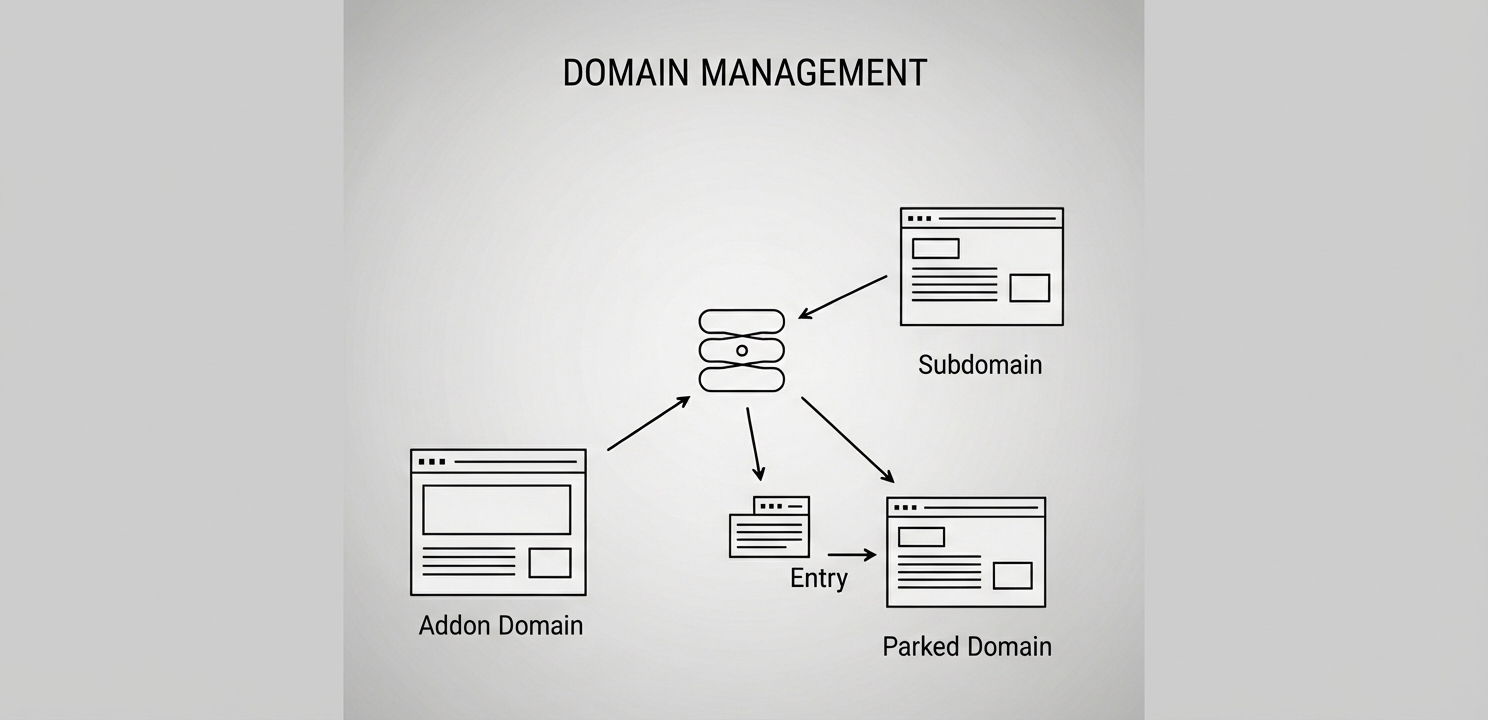
Use cPanel to effectively manage addon domains, subdomains, and website aliases.
How to Use cPanel
This guide provides a detailed overview of how to use cPanel, focusing on the essential steps for effective website management. By leveraging cPanel, you can simplify the administration of your website and its various components, making technical tasks more accessible. cPanel is a control panel that gives you a graphical interface and automation tools designed to make managing your web hosting account straightforward. For more in-depth technical information, the official cPanel documentation serves as a comprehensive resource. Learning to use cPanel is a key step in taking full control of your online presence.
Getting Started: Your First cPanel Login
To begin managing your website, you first need to log in to cPanel. Your web hosting provider will supply you with a unique cPanel username and password upon signing up for a hosting plan. This information is critical for accessing the control panel. You will use these credentials to access the cPanel login page, which is typically found at a specific URL provided by your host, such as yourdomain.com/cpanel or a dedicated server address.
How to Use cPanel for Web Hosting Management
Once logged in, cPanel presents a wide array of tools for managing your web hosting service. These features allow you to control the core elements of your website’s setup and performance. You can handle everything from domain configurations to security protocols directly from the main dashboard.
Domain Name Management
Properly managing your domain names is fundamental to your website’s structure. cPanel offers several options for this purpose:
Addon Domains: This feature allows you to host multiple, separate websites from a single hosting account. Each addon domain will appear as a unique website to visitors.
Subdomains: You can create subdomains to organize your site into distinct sections, such as blog.yourwebsite.com or store.yourwebsite.com.
Parked Domains (Aliases): Parked domains let you point an additional domain name to your primary website. For example, you could have yourwebsite.net display the same content as yourwebsite.com.
Speed and Performance Optimization
A fast-loading website provides a better user experience and can improve search engine rankings. cPanel includes tools to enhance your site’s speed:
Cloudflare CDN Integration: Integrating a Content Delivery Network (CDN) like Cloudflare helps distribute your website’s content across a global network of servers, ensuring faster load times for visitors regardless of their location.
GZIP Compression: This feature compresses your website’s files before sending them to a visitor’s browser, significantly reducing file sizes and speeding up content delivery.
Caching Settings: Properly configured caching allows browsers to store copies of your site’s static files, meaning they don’t have to be re-downloaded every time someone visits, leading to improved performance.
SSL Certificate Management
Security is paramount for any website. Managing your SSL certificates is a critical step in securing your site and protecting your visitors’ data. An SSL certificate enables an encrypted connection (HTTPS), which is essential for building trust and is a known ranking factor for search engines. cPanel provides tools to install, manage, and renew your SSL certificates with ease.
Use cPanel to organize website files efficiently through a structured management interface.
Streamlining Your Email Management
cPanel makes it easy to manage all aspects of your professional email accounts. You can create and oversee email addresses associated with your domain name.
Creating New Email Accounts: From the Email Accounts section, you can quickly create new email addresses, such as contact@yourwebsite.com, and set secure passwords for them.
Email Forwarding: This useful feature allows you to automatically redirect incoming emails from one of your custom domain addresses to another email account, like a personal Gmail or Outlook address.
Email Filtering: To maintain an organized inbox and combat spam, you can set up email filters. These filters can automatically sort incoming messages based on specific criteria you define, helping to prevent unwanted emails from reaching your inbox.
Auto-Responders: You can also configure auto-responders to send automated replies when you are out of the office or to confirm that a message has been received.
Effective File Management with File Manager
The File Manager in cPanel provides a user-friendly, web-based interface for managing all your website’s files and folders without needing a separate FTP client.
Creating, Deleting, and Moving Files: You can easily organize your file structure by creating new files and folders. Right-clicking on any item allows you to delete, move, or rename it as needed.
Uploading and Downloading Files: The “Upload” and “Download” buttons in the File Manager toolbar simplify the process of adding new files to your server or saving copies to your local computer.
Managing File and Folder Permissions: cPanel allows you to change file permissions, also known as CHMOD settings. These permissions control who can read, write to, and execute files, which is crucial for website security and functionality.
Robust Database Management Features
cPanel provides powerful tools for database management, primarily using MySQL and the phpMyAdmin interface. Databases are essential for content management systems like WordPress.
Creating a MySQL Database: In the “MySQL Databases” section, you can create a new database and assign a specific user with permissions to access and modify it.
Database Backup and Restore: Using the integrated phpMyAdmin tool, you can create backups (exports) of your databases and restore them whenever necessary. This is vital for data protection.
Database Optimization: Over time, databases can become inefficient. phpMyAdmin includes tools to optimize your database tables, which can help improve your website’s overall performance.
Simplified Backup and Restore Processes
Regularly backing up your website is a critical practice. cPanel offers user-friendly tools to take and restore full or partial backups of your website’s files and databases.
Creating a Backup: The “Backup Wizard” tool guides you through the process of creating a complete backup of your website, including your home directory, databases, and email configurations.
Restoring from a Backup: The restore functionality allows you to easily recover your website using a previously saved backup file. This is invaluable in case of data loss or a critical error.
Enhancing Your Website’s Security
Finally, cPanel includes several important tools designed to help you increase the security of your website and protect it from common online threats.
Hotlink Protection: This feature prevents other websites from directly linking to and using your site’s files and images, which can consume your bandwidth.
IP Blocker: If you identify malicious activity coming from a specific IP address, you can use the IP Blocker to prevent that address from accessing your website.
Password-Protected Directories: You can add an extra layer of security to certain sections of your website by protecting them with a password. This ensures that only authorized users can access sensitive areas.